Showing posts with label Construction (Digipack). Show all posts

Friday, 11 November 2011

Digipack Final Edit


Outside of the Digipack
 

Inside of the Digipack - The Disc would go on the far right panel and roughly cover the drum. A sticker would be put on the CD with the drum with "Modern Winter" at the top and "Opportunity" at the bottom. 


Booklet Cover
 
Booklet Pages 1 and 2

Booklet Pages 3 and 4
Booklet Pages 5 and 6
Booklet Pages 7 and 8

Thursday, 10 November 2011

Digipack Improvements

The key criticism of my Digipack was the font. I decided that it would be best to use the Kenyan Coffee font that was also used in my Magazine Advert. At this stage I copied the exact version of the titles from the Magazine Advert into my Digipack so that the synergy was stronger.

After some discussions on layout I was finally able to settle on this as the final layout. It does not take up as much space as the initial design and it makes the cover more dynamic too.

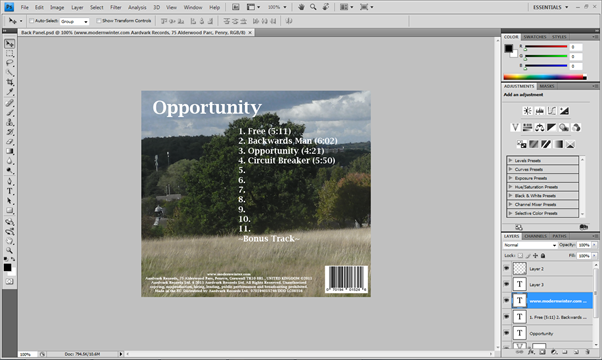
Next, I fixed the fonts on the back cover of my Digipack to match those in my Magazine Advert with Kenyan Coffee being used for the title and then LondonTwo for the Track List and the credits. I also shrunk the barcode and record label logo slightly so as to create more space on the cover.

The most obvious issue with the outside of the Digipack as the lack of continuity throughout the panels. The only way to fix this without re-shooting the images was to use image editing to change the horizon. One method was using the Healing Brush on the right hand side of the back panel to slightly remove the trees to slant better into the panel next to it.

I did attempt a similar tactic to fixing the grass in the bottom left corner, but, this did not work as well. So, I copied a section of the grass, pasted it over the top of the grass and then rotated the copied grass to flow into panels to the left of the back.

The next problem was the side panels, or, mainly the left hand side side panel which simply refused to flow properly. Ergo, I had to edit the image quite heavily to get it to work. The first of these edits was to rotate the background slightly so as to begin to get the flow to work. The image was then copied in to the collated outside but it still did not fit properly.


Further attempts to fix the problem saw me stretching the image and then copying the trees and tilting them as best I could to make the treeline flow. This worked to some degree.

The final tactic was copying the grass and rotating that slightly to the right. This was then copied into the collated outside and the issue was fixed.

After fixing the outside I moved onto the outside which only needed a font update so this was quickly applied to all three panels.


With all of the main panels of the Digipack sorted I imported them all into the collated image and slotted them together so that there was a better visual representation of the Digipack.


A few days after receiving the teacher feedback which was about a week and a half before the deadline, I was told that I needed to include a greater variety of shots in my Digipack. The only way I could do this was to create a booklet with shots of the band and information about them similar to Razorlight's booklet in their album 'Razorlight'. To do this, I had to do a new photo-shoot to get the shots. Unfortunately because I was rushing and panicking my control over the lighting was not great so some shots had different lighting, but, I was really flustered and had no time to fix these lighting issues.


For the booklet I felt I needed an interesting background design. To create something that was iconic but simple I used the Vectors Brush. I used this on the Record Label logo but this design is much denser so as to make more of an impact.

A paper texture was then imported into Photoshop and placed over the design. It was then given a colour overlay to create the striking colour on the page. The layer was then set to 'Hard Light' as its blending option so that the design behind it was affected as well as the entire background to create a simple but complex style that suits the band. 

Using the Kenyan Coffee font from the cover, I wrote each of the band members' names and their job within the band. As this is for the band's Debut Album, it is one of tasks of the booklet to introduce the audience to each of the band members and this was one part of doing so.

Next I imported the best image of the band member into the panel. I positioned them close to where the inside of the booklet would be so that when the panels were collated the members would be standing back to back.

The backgrounds of the images were then cut away using a mixture of the Magic Wand and the Eraser tool in an attempt to get the cleanest cut possible. On Stephen's picture specifically I also used the Lighting Render tool to lighten the back of his face more because it appeared too dark.

The Blending Options of the images were then changed to Luminosity so that they blended into background a bit so as to make the cuts seem smoother. Profiles of the band members were also written using information gathered from the band themselves.

On the corresponding pages, I moved the design to the right so the band members on these pages (Tom and Matt) could be on the left in the back to back layout I had envisioned. I also used different colours for each of the band members to distinguish them from each other.


After sorting out the booklet pages I needed to create the outside of the booklet which I decided should be similar to my Digipack cover. Ergo, I used the same images as the front and back of the Digipack.

The key change was that instead of the vibrancy being decreased, I increased the saturation like the inside of the Digipack. This was also done on the front cover of the booklet. This was to suggest the welcoming nature of the band now that the audience have taken the time to look at the album. On the back panel, the position of the credits changed slightly so it was more prominent than it was on the outside of the Digipack. I also copied part of the sky and covered part of the horizon to make it flow better.


As with the outside and inside of the Digipack, I collated the images into their technical format so each of the pages were together as they would be when the booklet was opened up. Once all of the panels were collated as needed, the Digipack was complete.

Friday, 28 October 2011

Feedback on Texts

Magazine Advert:
Teacher Feedback: "All font is too big & dominates the poster, remember that this would be viewed closely in a magazine"
Student Feedback: "The style of the top font in my opinion does not fit the atmosphere that the advert portrays." - One suggestion from this discussion was to try using the same or a similar font to the other font on the advert.

Digipack:
Teacher Feedback: "Font too big (still). Image of band looks rather ‘normal’ (should they be wearing some kind of costume/stage wear?). Photos are good quality & the credit blocks & logos are good"
Student Feedback: "Font doesn’t feel right. Play around with it."

Music Video:
Teacher Feedback on First Draft: "The video now works well, there is a more dynamic feel to it, achieved through editing, particularly that of, sometimes opposing, movement. Beautifully shot, with some lovely framing & composition together with some great 360s & general camera movements that add a dynamic element.
 To improve:
  • Now it is really a question of whether further editing can add more & whether you think it is worth shooting any extra footage?
  • The band are very professional in their performance & attitude but they aren’t very animated/energetic/eye-catching. This means that you have to create the ‘buzz’ & edgy feel around them. Do you feel it needs more? What does the band think? What does Frankie think?
  • At the end I would like to see her walking up the path into the future where she will ‘fend for herself…’ as she looks like she is walking into a confined area (small point really)perhaps s few more inserts of XCUs of instruments being skilfully played. 
  • Narrative element needs to be more varied, it is somewhat repetitive.
  • Mise-en-scene for the narrative needs tighter control (goal posts in the background & other distractions)."
Student Feedback based on Second Draft: "It was amazing and completely flawless and I loved the use of the filter"
Other pieces of feedback on the Second Draft included: "It's good, a little bit jumpy in places, need to work on that. A number of places through when your changing shots, the continuation doesn't look right. Some of the shots towards the end are a bit too jumpy, but if you edit it in the right way then they will look better. "

Thursday, 20 October 2011

Digipack First Draft


Outside of the Digipack

Front Cover

Back Page
Inside Panel on the Outside
Outer Side Panel 1
Outer Side Panel 2

Inside of Digipack

Left Hand Inside Panel

Inside Middle Panel
Right Hand Inside Panel - Location of CD
Right Hand Inside Side Panel
Left Hand Inside Side Panel

Digipack Construction

These are the Digipack Dimensions I used to create my Digipack. I did change a few dimensions like the middle panel, and the positioning of the disc, but, on the whole it was the most useful dimension source.
The first piece of the pack was the Cover. Stage 1: Import the chosen image. Resized to keep the overall freedom of the pack whilst retaining the visibility of the band.

Stage 2: Introduce the text. Font subject to change at a later date.

Stage 3: Add Vibrancy Filter to the image. Vibrancy changed by -60, Saturation increased +20. Done to link into the video's colouration. Keeps the marketing campaign tight and unique.

Stage 4: Something appeared to be lacking so I added a glow, increased the font size and added snowy brush strokes in an attempt to make it more exciting. Unfortunately, it took away from the needed simplicity and looked worse than before.

Stage 5: This was the second attempt to improve the visibility and make the text stand out. This too was a failure as it made the text too "in your face" and just did not work properly.

Stage 6: One suggestion at this stage was to separate the band name and the album title to open up the cover, keeping with the freedom of the album and song.  

The second panel was the Back Panel. Stage 1: Import the image and use the same Vibrancy settings as the other panels.


Stage 2: Produce a barcode for the pack. A real barcode was imported into Photoshop where I removed the numbers and replaced them with my own so that it was unique to my product.

Stage 3: Legal information and Barcode introduced as well as a mock positioning for the Track Listing. Meeting the physical conventions of a Digipack.

Stage 4: Start to include track listing. I decided to wait for an official list from the band before I continued so that it was more accurate. I also included the Album Title like the 'Sucker Punch' Album that appeared in my research.
Record Label Logo produced. Basic merging of different paint brushes.

Stage 5: Record Label's logo included. Hand made for this task.
Final Record Label Logo. Produced after initial file lost.

Stage 6: Changed the font to the newly found designs, changed the Album title to make the rest of the text on the Digipack and changed the other font to something much simpler. The Track Listing had been acquired by this point and updated. Also, due to a mishap, the original Record Label design was lost and another had to be made.

Stage 7: Removed the Stroke like the rest of the Digipack but also zoomed out to keep the horizon as close as possible across the three panels. Track Listing changed to be more accurate as I made a mistake in reading the list. Healing Brush tool used to darken the clouds to make the text more easily visible.

The Final Outer Panel was the third to be designed. Stage 1: Import the image. I noticed that my initial plan for the panel had not quite worked as the grass and horizon covered up too much of the panel.

Stage 2: Introduce the text: lyrics from the chorus of the song. Everything was a little too big at this stage, but, as it was only a very rough draft, it was something to be dealt with later.

Stage 3: I felt like something was missing from the panel so I added a few paint flourishes to the corners to jazz the panel up. Something still did not work right though. 

Stage 4: Zoomed out the image to fit with the rest of the Digipack and changed the text to the current style at that time, giving it the same stroke to make it stand out.

Stage 5: After being told numerous times that the text did not look right, I simply removed the textual element from the panel altogether and the panel has improved immensely as a consequence.


Next, I designed the side panels to connect the three main panels together. In essence, they are the same, except with a different picture and reflected and rotated text.


All the necessary information is included: The Album Title, Band Name, Record Label logo and name and Barcode Number. All image effects also included and the image is positioned so as to create a continuous background.


The Disc Panel involved a particular shot of the drums I got when filming. The image was resized so that the entire circle fitted into the panel, so it linked to the location of the CD itself. Then the text was introduced, part of the on-going lyrics flowing through the inside of the Digipack. This was then changed to a white colour and the size was changed to make it stand out more. The Saturation of the image was then increased to give the Digipack's inside a happier feel.


The production of the Inside Middle Panel was recorded and can be seen here:


The Left hand inner panel was initially just going to be a close up of the guitar. However, I forgot to take such a shot. This meant that I was forced to use on the photos that were automatically taken during filming and work with that. The image was resized and then the background was erased. The image was then transplanted on top of one of the field images and then set to overlay. This created a rather ethereal and dream-like image that linked the Digipack to the video even further.